-
Day three of the flu still have a fever not really how I wanted to spend the holidays 😔
-
Isn’t it great how iOS 26.2 will just randomly not show you a keyboard when you tap into a text box?
It’s a great opportunity to pause and think “Hmm, maybe I don’t need to type this right now.” #mindfulness
-
RIP Rob Reiner - Princess Bride is one of my families favorite movies.
-
Dr Paris is having a bad day. Apple locked him out of all of his accounts.
-
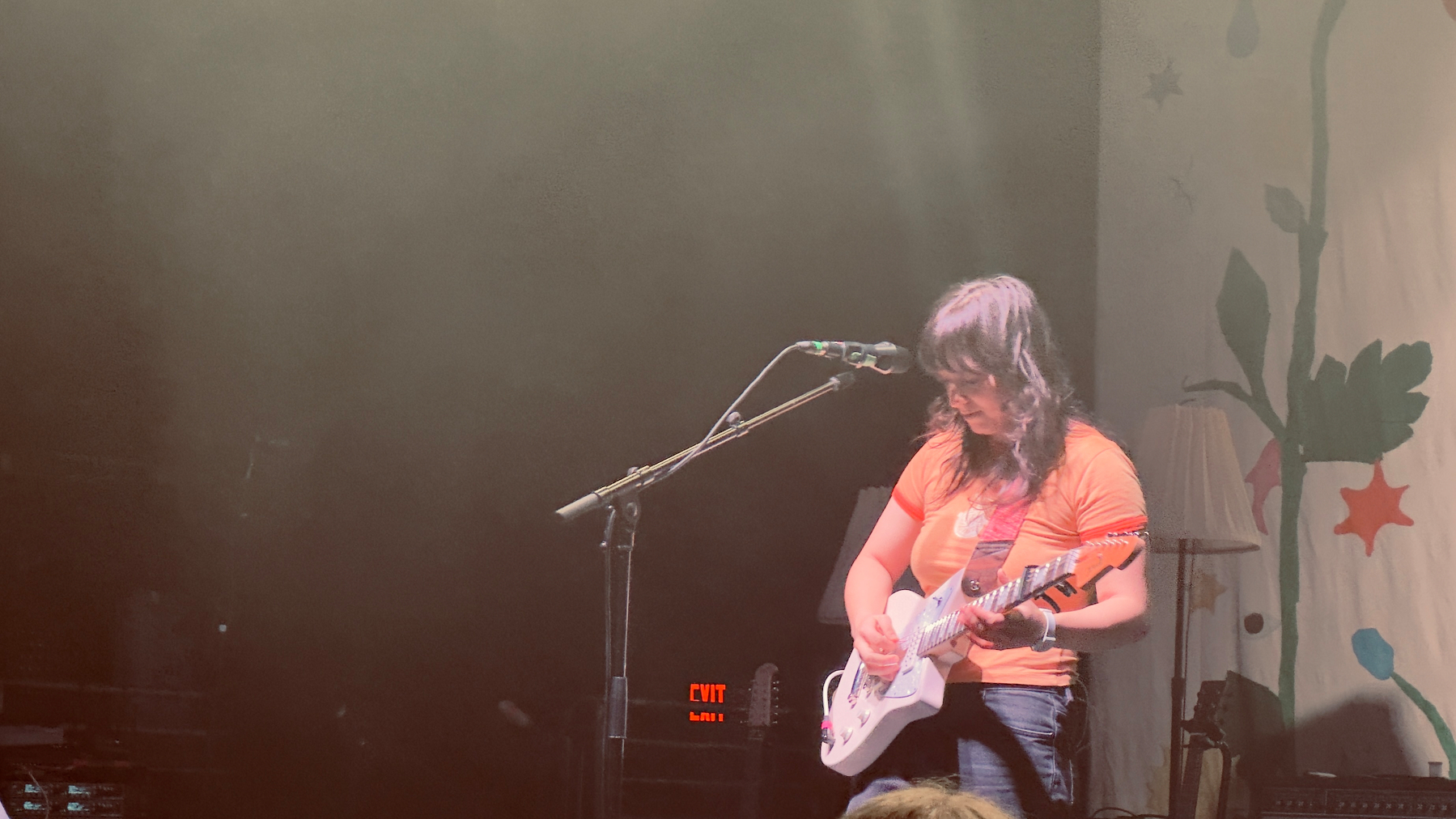
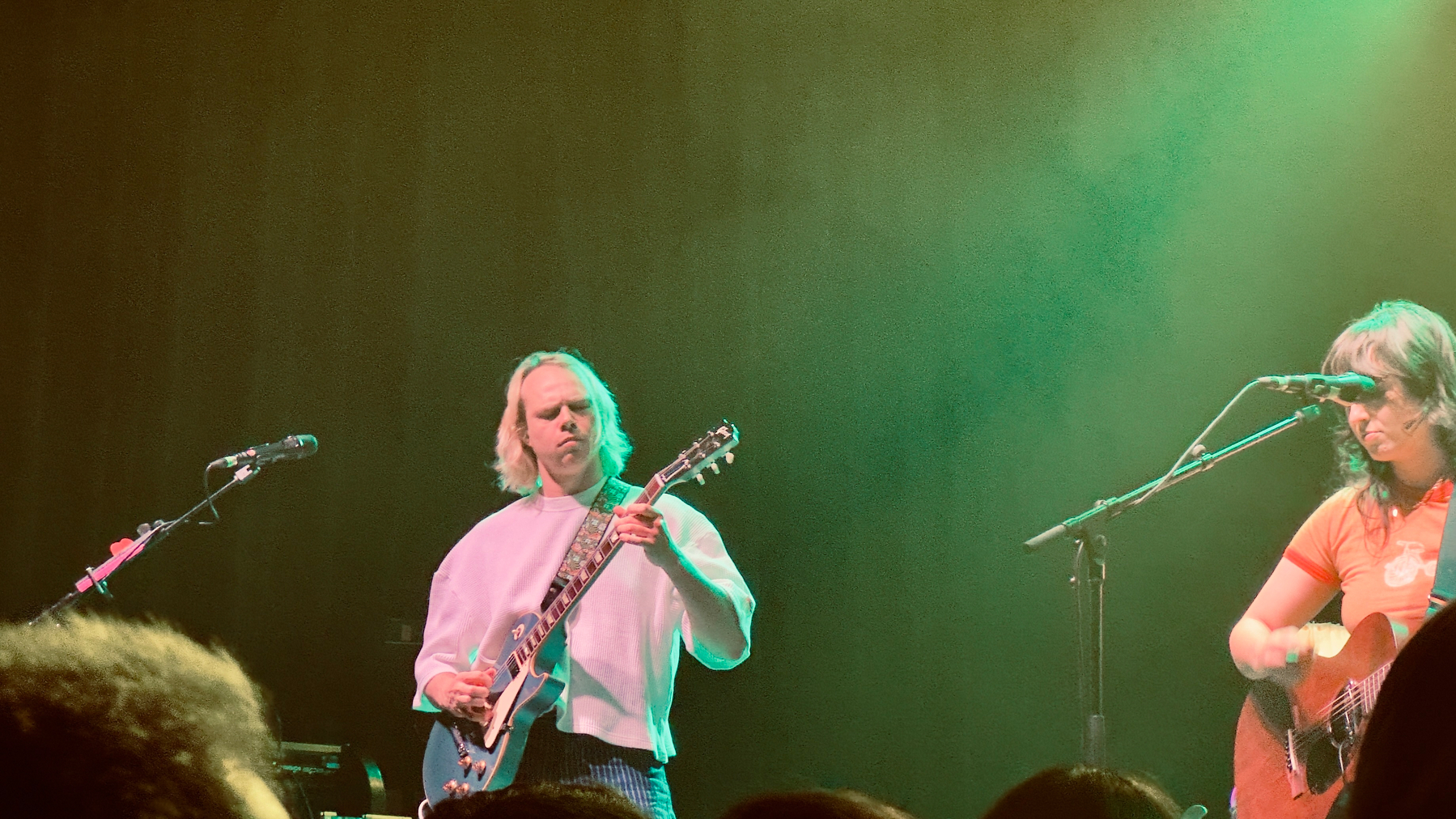
Seeing @thebeths.bsky.social and @phoeberings.bsky.social was a highlight of my weekend. Great show! #Philly #Music


-
I find myself apologizing to Claude when I give it incorrect instructions. #ai
-
Rob Zolkos deconstructs some 37Signal products and notes that “Vanilla CSS is all you need”
I’m still digging through this but he makes some interesting points.
-
Wow. San Fran suing food manufacturers for selling ultra-processed foods.
-
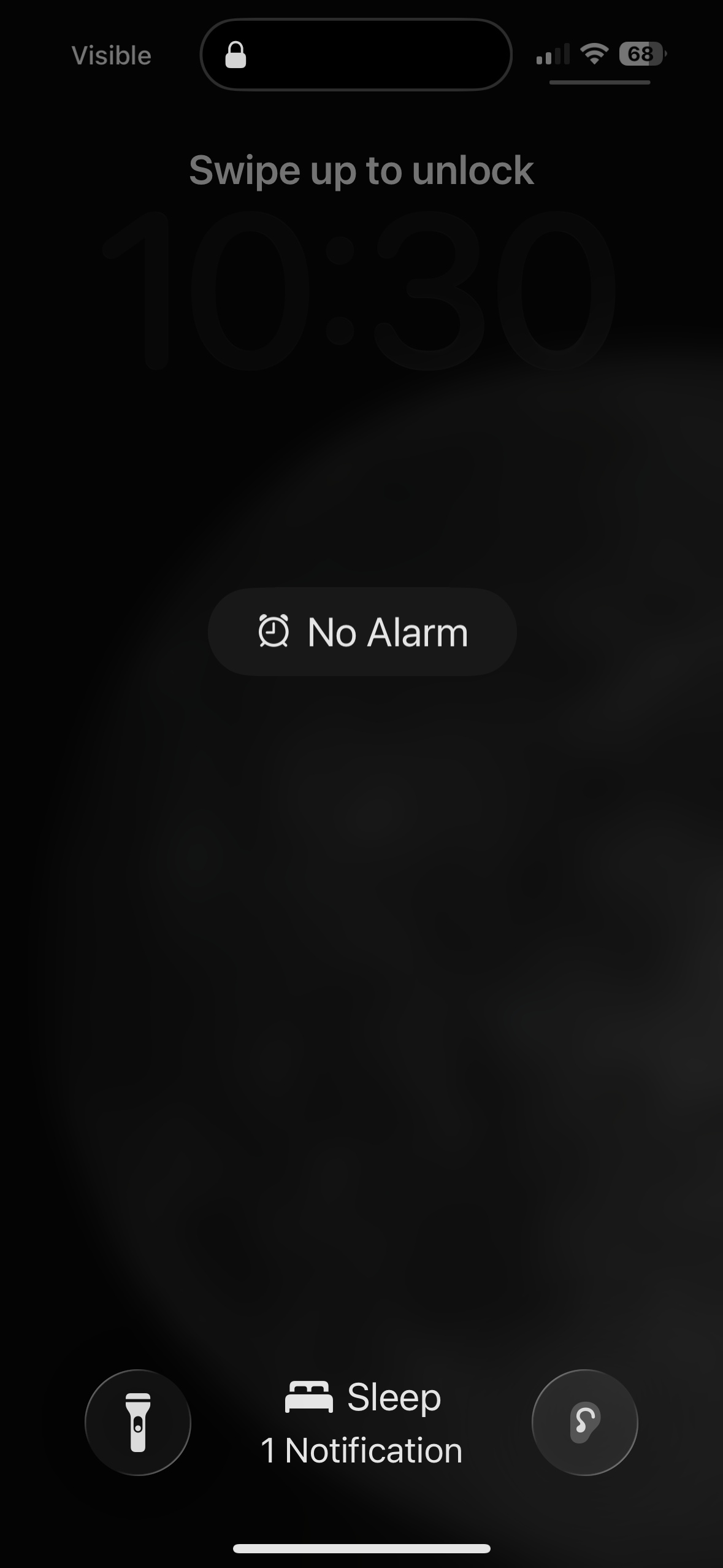
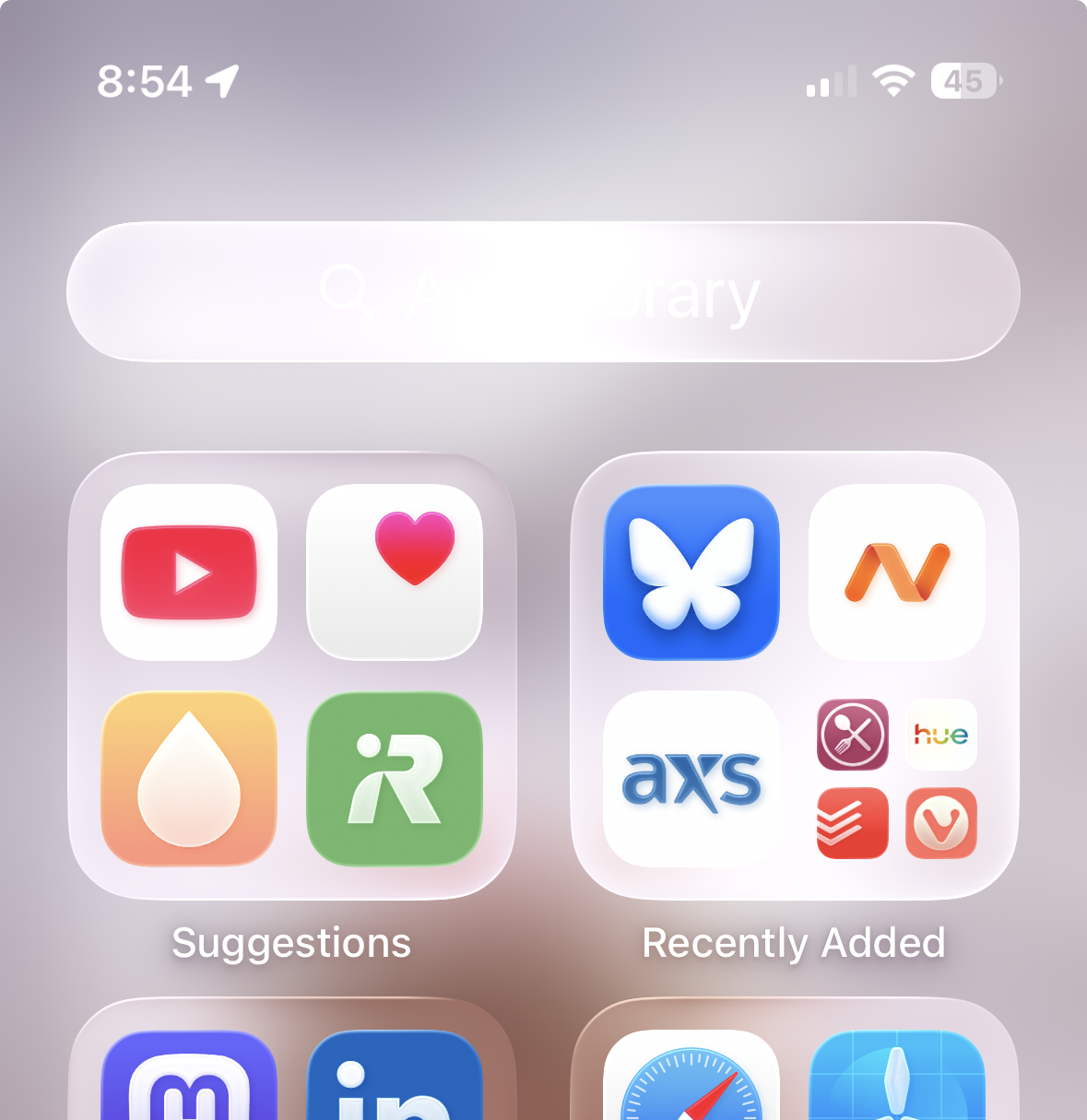
What time is it? #LiquidGlass.
-
-
Another example of iOS 26 Liquid Glass usability issues.
-
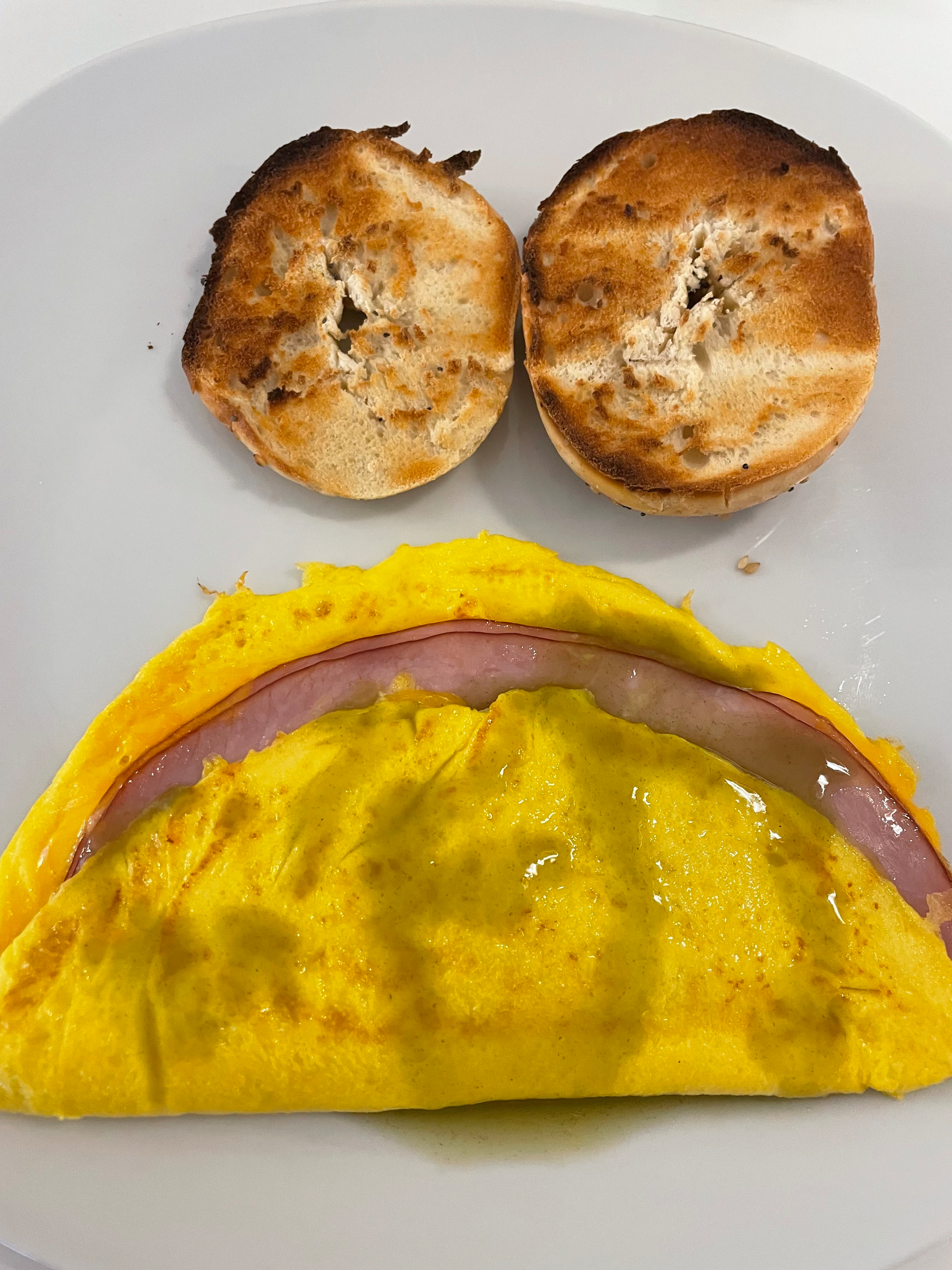
Manamana
-
I would cancel Spotify if not for my family.
Tonight I asked my Google Assistant to play Classic 70s Rock.
It chose this playlist of hot garbage consisting of fake artists doing bad covers.
-
“Easy to make a movie, hard to get people to see it.” - Stacy Spikes
This sounds like an #indieapp development problem too.
The point is you need community to make it happen.
#Philly #1Philadelphia #innovationweekend
-
“Everything that happens to me, happens for me.” - Stacy Spikes CEO of MoviePass
#Philly #1Philadelphia #innovationweekend
-
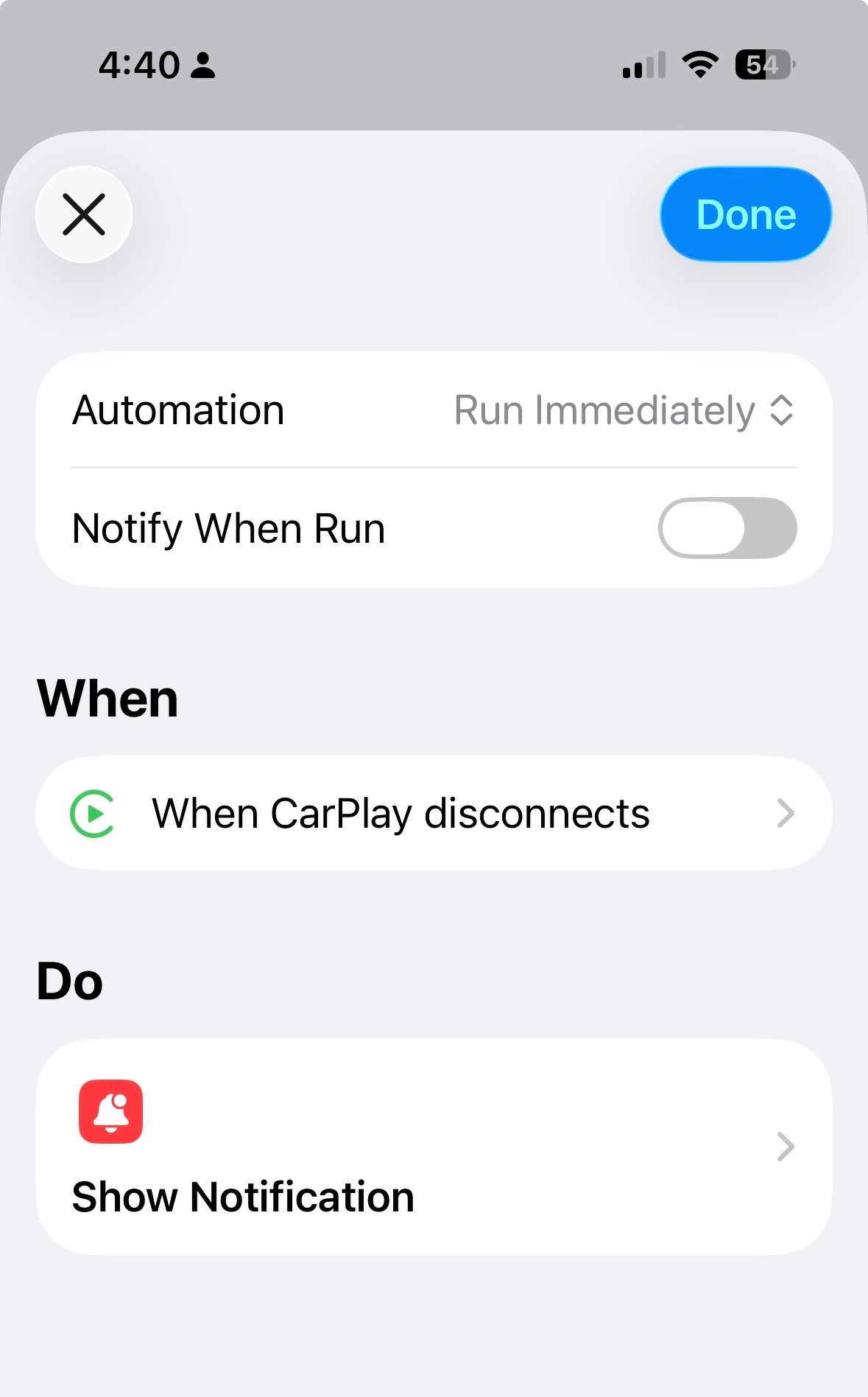
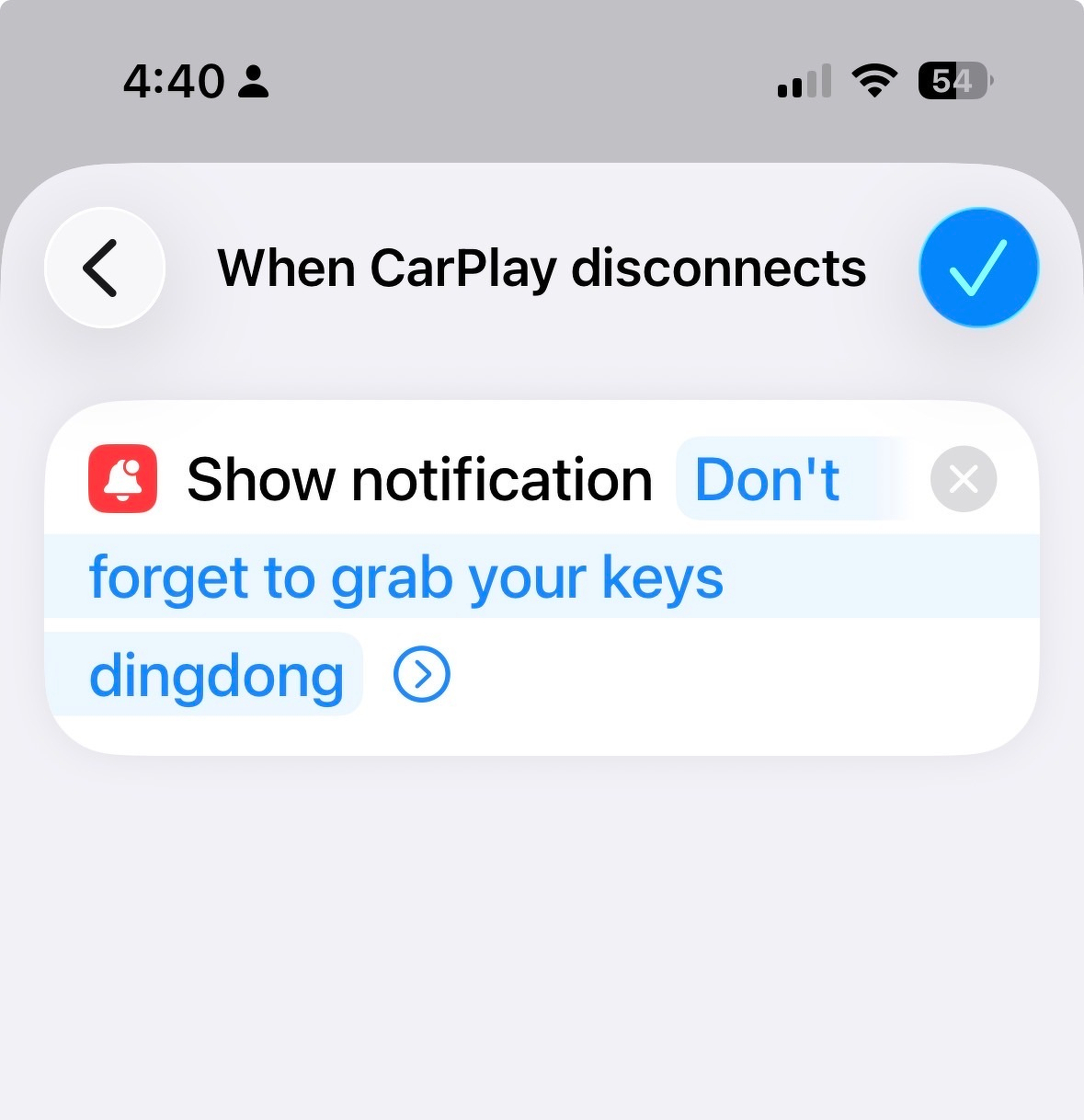
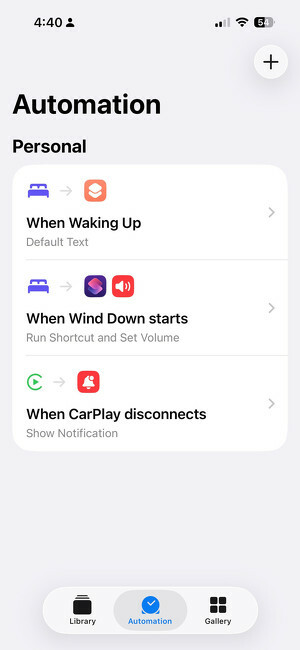
My new favorite iOS Shortcut? A reminder to grab my keys when I leave the car.
See the screenshots below.
-
I’ve had the Benny Hill theme song running through my head for the last two days.
-
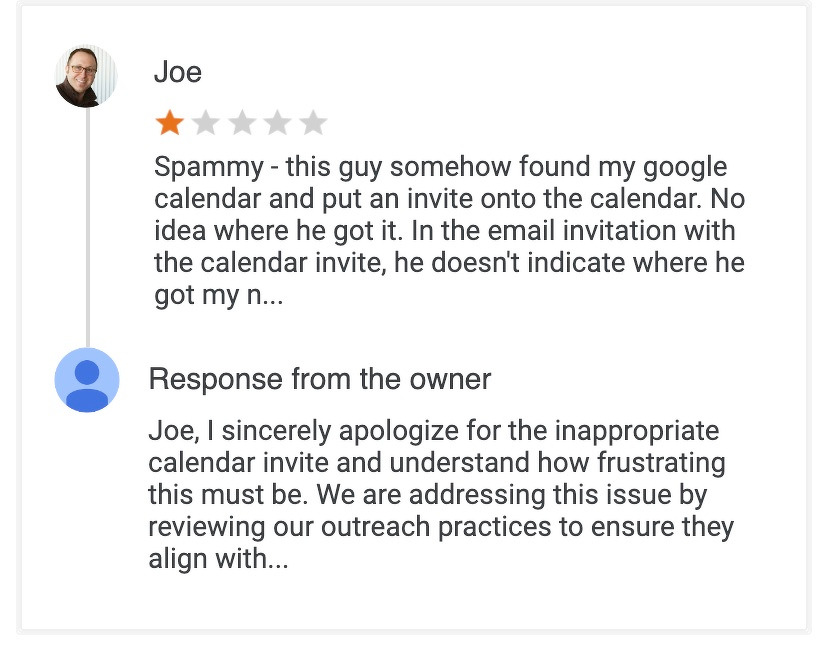
I really wish Google would do something about GCal spam. I get a fake calendar invite in my calendar at least once a week.
This time, the knucklehead’s website showed some Google reviews. So I decided to oblige.
EDIT: Turns out there is a setting on Google Calendar for this.
-
ProPublica released a report showing ICE has detained US citizens.
Americans have been dragged, tackled, beaten, tased and shot by immigration agents. They’ve had their necks kneeled on. They’ve been held outside in the rain while in their underwear. At least three citizens were pregnant when agents detained them.
and then lied about it:
[A]gents do not racially profile or target Americans. “We don’t arrest US citizens for immigration enforcement,” wrote spokesperson Tricia McLaughlin.
-
A critique on the decline in the quality of Apple’s software products.
-
I really liked season 2 of Peacemaker. I just found out that the last episode was the lowest rated episode of the season. I think it’s because the previous episode actually felt like a season finale and it took me a few weeks to realize it wasn’t over.
-
Is this a new SMS spam vector? I tend to get about 3 - 4 a week. It seems to have started In September.

-
Call me crazy but demolishing a chunk of the White House for a $240M gilded ballroom doesn’t seem like the act of someone who thinks he’ll be out of office in 4 years.

-
I’m happy to see that iOS 26.1 has a setting to tone down the liquid glass effect.
subscribe via RSS